

Quick Start
You can go from zero to seeing your first logged email in about 60 seconds.
Prerequisites
- Docker installed on your server or local machine
- A password for the admin UI
Start SeeSee
Run SeeSee with a single command:
docker run -d \ --name seesee \ -p 8080:8080 \ -p 2525:2525 \ -e SEESEE_ADMIN_PASSWORD=your-secure-password \ -v seesee-data:/data \ ghcr.io/brandonjp/seesee-email:latestThis starts both the HTTP server (port 8080) and the SMTP ingest server (port 2525).
With Docker Compose
Create a docker-compose.yml:
services:  seesee:    image: ghcr.io/brandonjp/seesee-email:latest    container_name: seesee    restart: unless-stopped    ports:      - "8080:8080"      - "2525:2525"    volumes:      - seesee-data:/data    environment:      SEESEE_ADMIN_PASSWORD: "your-secure-password"
volumes: seesee-data:docker compose up -dLog in to the Web UI
Open http://localhost:8080 in your browser.
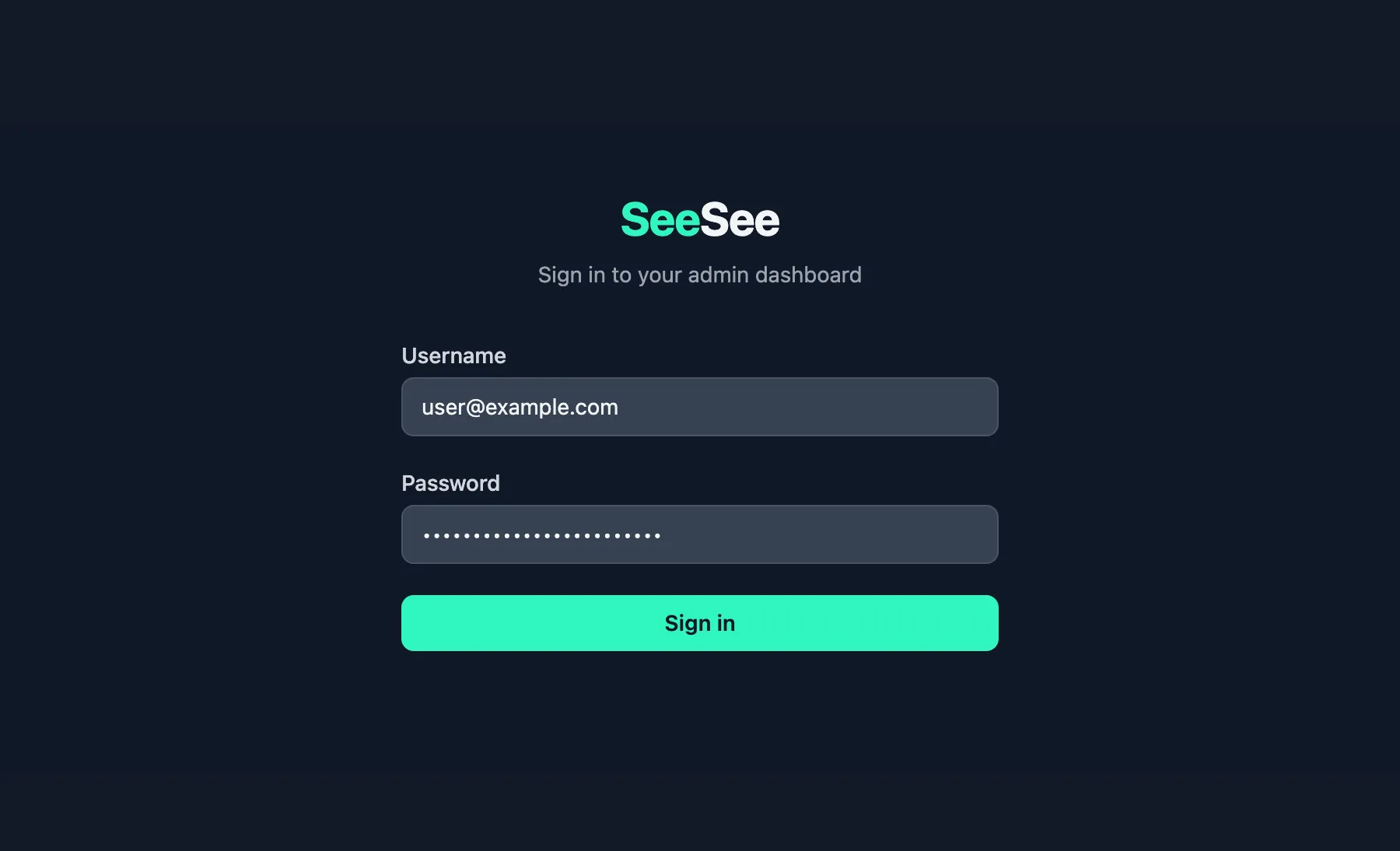
Log in with:
- Username:
admin(default, configurable viaSEESEE_ADMIN_USERNAME) - Password: the value you set for
SEESEE_ADMIN_PASSWORD
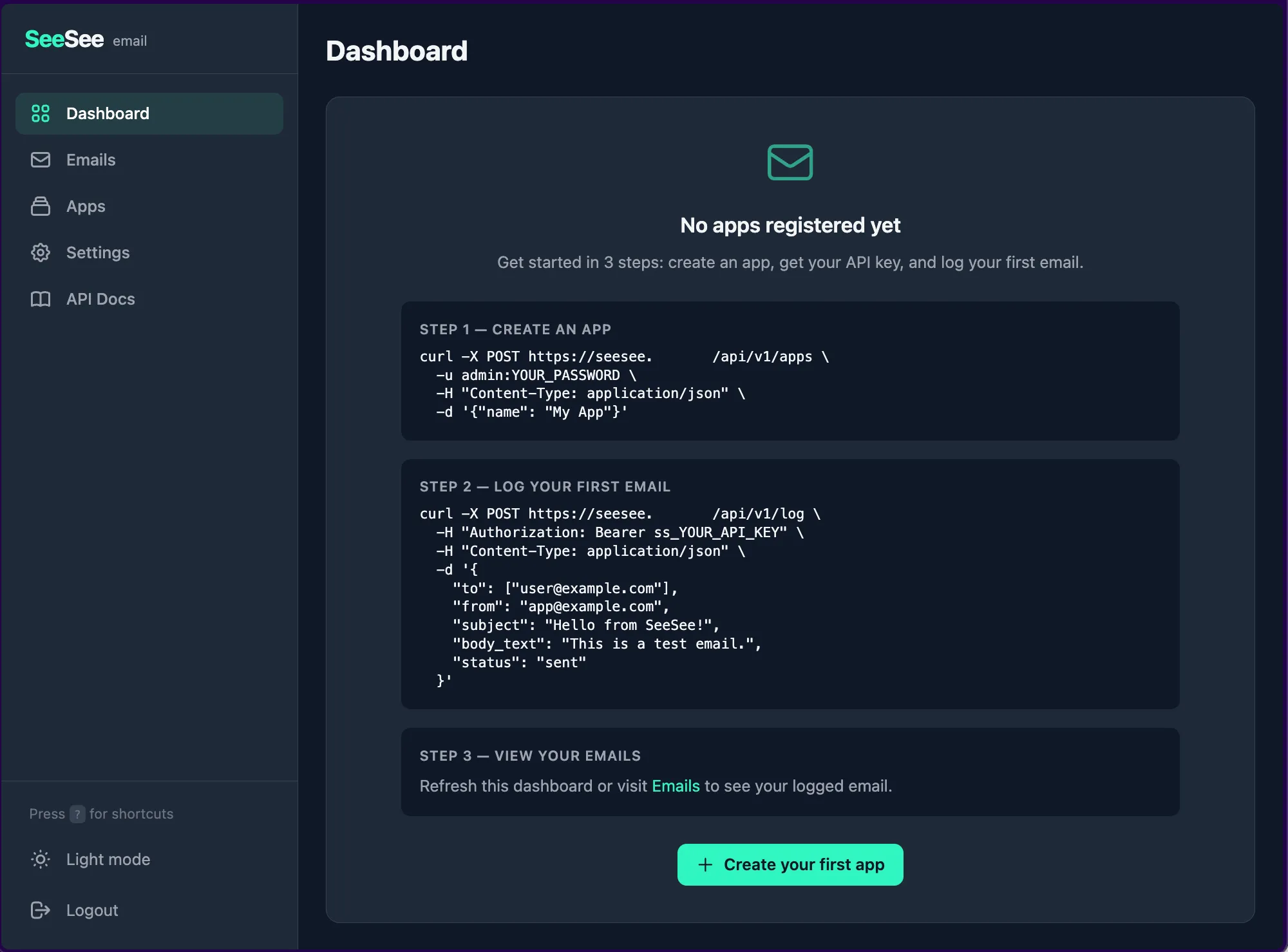
You’ll see the dashboard with onboarding steps to guide you through setup.
Create an app
Apps represent the services that send email through SeeSee. Each app gets its own API key and SMTP credentials.
- Navigate to Apps in the sidebar
- Click Create your first app
- Enter a name and choose a body storage mode
- Copy the API key shown — it’s only displayed once
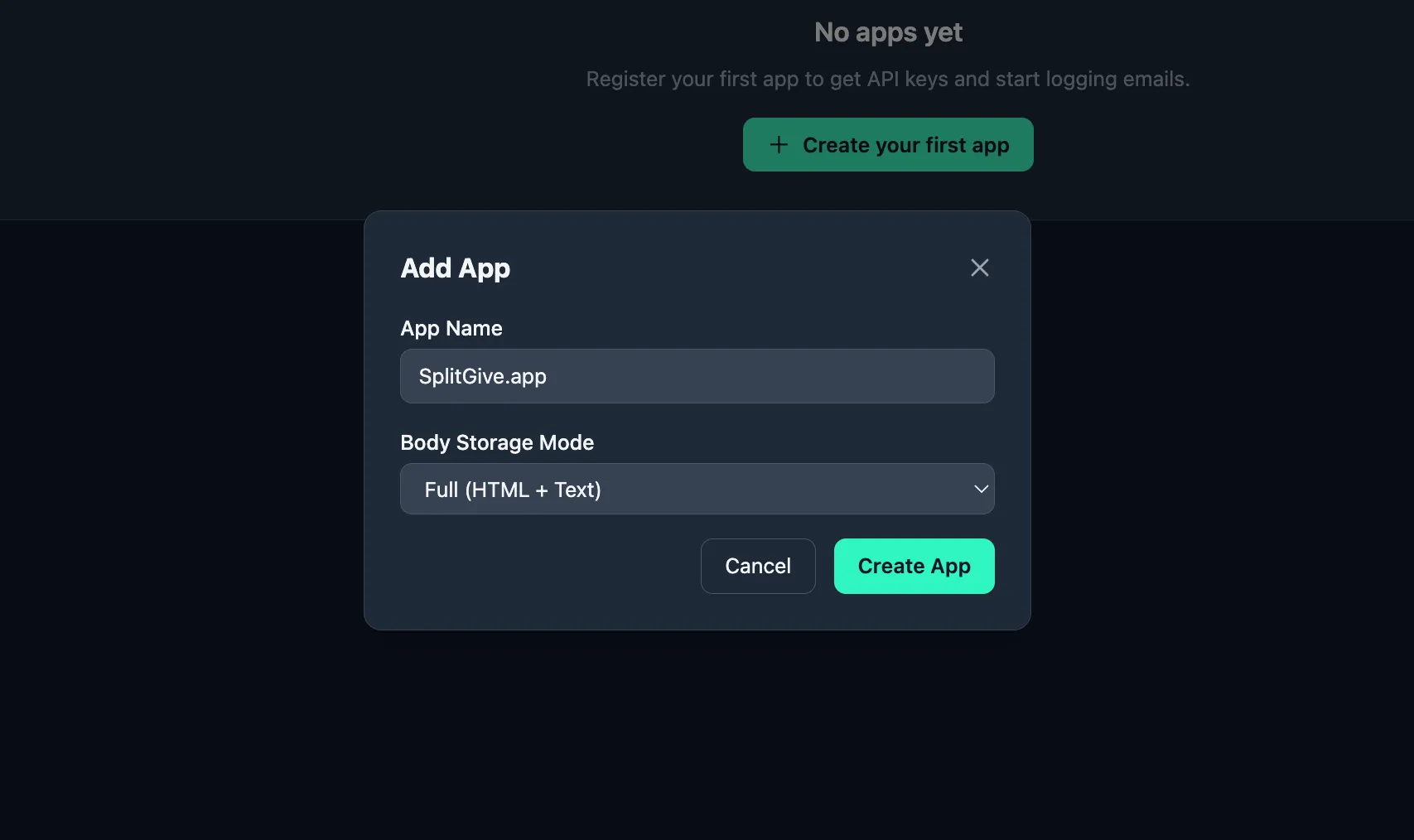
Or create one via the API:
curl -X POST http://localhost:8080/api/v1/apps \ -u admin:your-secure-password \ -H "Content-Type: application/json" \ -d '{"name": "My Website"}'The response includes your API key (ss_...) and SMTP credentials. Save them somewhere safe — you won’t see the key again.
Log your first email
Via REST API
curl -X POST http://localhost:8080/api/v1/log \ -H "Authorization: Bearer ss_your_api_key_here" \ -H "Content-Type: application/json" \ -d '{ "to": ["user@example.com"], "from": "app@example.com", "subject": "Hello from SeeSee!", "body_text": "This is a test email logged via the REST API.", "status": "sent", "provider": "manual" }'Via SMTP
Point any SMTP client at SeeSee:
- Host:
localhost(or your server IP) - Port:
2525 - Username: the SMTP username from app creation
- Password: the SMTP password from app creation
- TLS: not required (for local/internal use)
Verify it works
Check that your email was logged:
curl http://localhost:8080/api/v1/emails \ -u admin:your-secure-passwordOr open the Emails page in the Web UI to see your logged email with subject, recipients, status, and a preview of the body.
Keyboard shortcuts
SeeSee has keyboard shortcuts for navigating the email list without touching your mouse. Press ? anywhere in the app to see them.
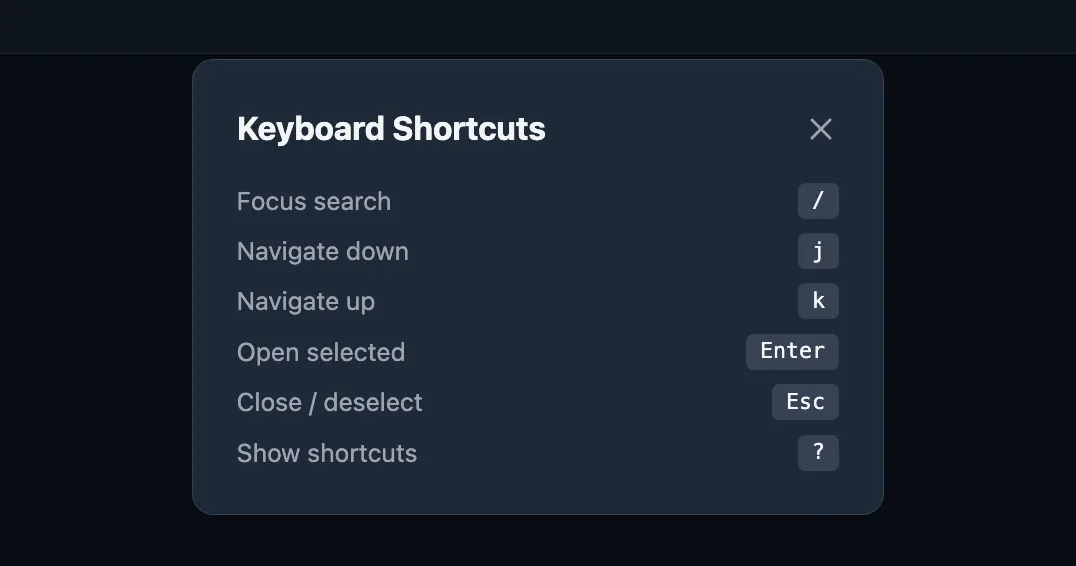
| Key | Action |
|---|---|
/ | Focus search |
j | Next email |
k | Previous email |
Enter | Open selected email |
Esc | Close / deselect |
? | Show shortcuts |
Next steps
- Configuration Reference — customize ports, retention, and more
- REST API Reference — full endpoint documentation
- SMTP Ingest Guide — capture emails via SMTP
- Docker Deployment — production setup with reverse proxy
- Integrations — PHP, Python, Node.js code examples